 $5 / user / mo · Kommo CRM
SLA: First Touch Control
Tracks how fast managers react to new deals: preventive alerts, an end-of-day report, and tasks on critical delays.
Purpose
SLA: First Touch Control measures the time between assigning a lead to a manager and the first real contact (call, message, email, note). Slow responses kill conversion — this widget makes the reaction window visible, lets you set a target SLA, and notifies the right people the moment something is at risk.
Unlike generic timer widgets, the time math is working-hours-aware: night, weekends, holidays don't count. Reassignments can reset the timer or keep it running depending on your policy.
How It Works
The widget watches Kommo for two events on every tracked lead: "responsible manager assigned" and "first manager contact". The seconds between them — counted only inside working hours — is the lead's First Touch SLA.
What counts as "first contact"
- Call — outgoing call with non-zero duration
- Message — manager's reply in any chat (Telegram, WhatsApp, etc.)
- Email — outgoing email to the lead
- Note — manual note from the manager (configurable)
Where you see the result
- Lead card — live timer with a coloured ring and badge while the SLA is running, and a frozen value once a contact happens.
- Pipeline view — coloured stripe or background marker on every lead card, so a supervisor can scan a board at a glance.
- Custom fields — "SLA First Touch" (text, read-only) and "Touch Type" (Call/Message/Email/Note) created automatically on install. Use them in filters, reports, Salesbot, etc.
Dashboard
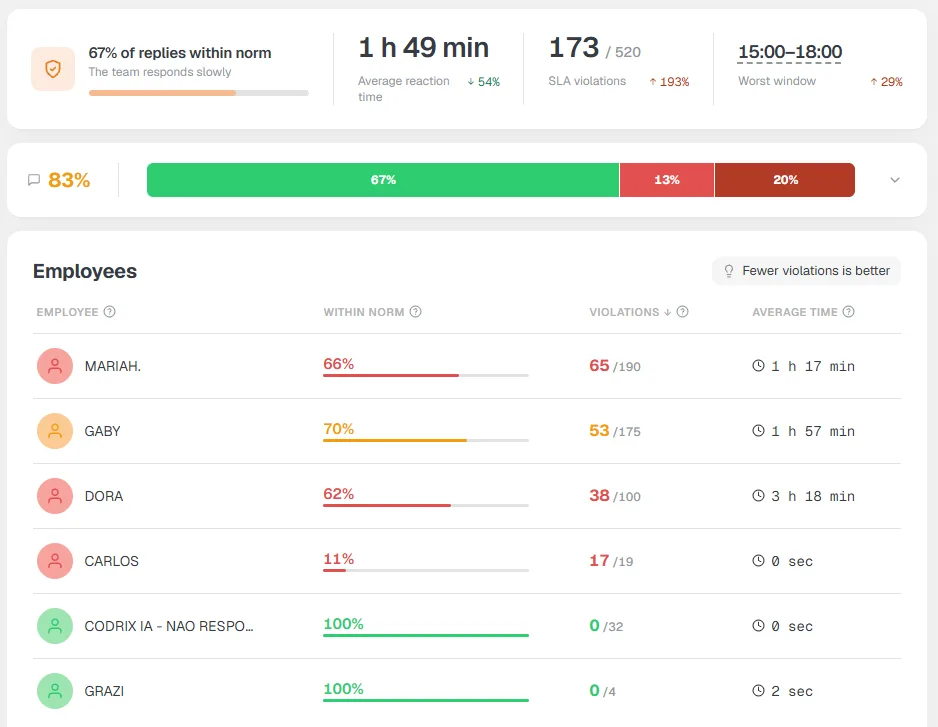
The headline report — a tile-and-table view of how your team handles first touches. Live: refreshes as Kommo events come in, no lag. Available as a dedicated widget tab inside Kommo's left navigation.
What's on it
- 4 KPI tiles — average reaction time, % of replies within SLA, total violations (n / total leads), and the worst time-of-day window. Each tile carries a delta vs. the previous period so you spot trends, not just absolutes.
- SLA by channel — Call / Chat / Email / Note, each with lead count, average reaction time, and % within SLA. Surfaces channels where your team is fast versus channels where it's quietly bleeding leads.
- Response speed buckets — leads grouped by ≤ standard, slightly over, well over, and no response. Visual share + raw counts on one band.
- Employee leaderboard — every responsible manager with their average SLA, % OK, and misses-out-of-total. Sortable by any column to spot underperformers or recognise consistency.
Drill-down
Click any segment — a channel chip, a speed bucket, an employee row, a KPI tile — to filter the lead list to exactly the cohort behind that number. From there you can open individual leads, message the responsible manager, or export.
Breach heatmap by day and hour
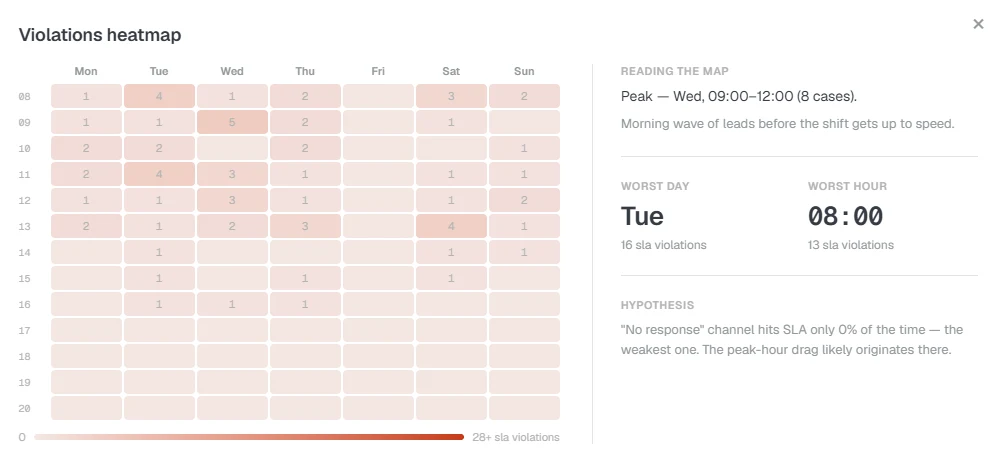
A separate map shows when the team falls behind. A “day of week × hour” matrix is shaded by SLA-breach density: the darker the cell, the more late first touches in that slot. The peak jumps out (e.g. Tuesday 09:00–12:00), and the side panel gives the worst day and worst hour with numbers, a short “map reading” and a hypothesis — which channel or window is dragging the numbers down. So you fix a specific hole in the schedule, not “speed in general”: reinforce the shift at peak hours or reassign who is on duty.
Response time limit
The single most important setting: how many minutes the team has to respond after a lead becomes their responsibility. The default is 30 minutes; pick whatever your industry standard demands.
Leads that exceed this limit are flagged as violated. The lead-card timer turns red and starts counting overage time (e.g. +5:12). Violated leads feed the digest and the critical-alert path.
Working hours
Set the working window once. The SLA timer pauses outside this window and on non-working days, so a lead arriving Friday at 18:00 doesn't burn the SLA over the weekend.
- Start / end — daily working window in the cabinet's timezone
- Working days — Mon–Fri by default; toggle weekends if you operate 7/7
- Hide off-hours leads — when on, leads created outside the window aren't highlighted as violations even if the response is delayed
Tracked pipelines
By default the widget tracks all pipelines. If you only want to enforce SLA on the inbound funnel — leave the others unchecked and the widget will ignore them entirely.
Reset on reassignment
If a lead is transferred to a different responsible manager, you can either reset the SLA clock (the new manager gets a fresh window) or keep it running (the original commitment stays). Pick the policy that matches how your team handles handoffs.
Pre-alert (in-app)
An in-Kommo notification that fires when the SLA reaches a configurable percentage of the limit (75% by default). The responsible manager sees a popup inside Kommo with a link to the lead — a chance to react before the SLA is violated.
- Threshold — at what percentage of the SLA target to trigger
- The pre-alert is shown only to the responsible manager, only once per lead, and only while the lead is still in waiting state
- Stale leads (older than 2× the SLA target) are skipped to avoid spamming about old violations
Critical alert (Kommo task)
For the worst cases — when the SLA has been exceeded by a configurable multiplier or a high-budget lead is overdue — the widget creates a task in Kommo for the responsible manager. The task shows up in their notification centre and is delivered through every channel they enabled in their Kommo profile (mobile push, email, browser).
- SLA multiplier — e.g. 2× means "fire when overdue by twice the SLA target"
- Budget threshold (optional) — also fire if a lead's amount exceeds N, regardless of multiplier
- One task per lead — deduplication is built in, no spam on repeated webhooks
Digest for supervisors (Telegram bot)
Periodic summary of SLA violations, sent through our Telegram bot at the times you specify (e.g. 12:00 and 17:00 in the cabinet's timezone). Two delivery modes — they can be used together:
1. Group chat
Press "Add bot to a group" in the widget settings — Telegram will ask you to pick a chat and grant the bot permission to post. The digest then lands in that group at the configured times.
2. Personal subscription link
The widget generates a short, signed link of the form https://t.me/firsttouchcrm_bot?start=…. Send it to anyone (typically a supervisor or sales lead) — they open it, press Start, and the digest starts arriving in their personal chat. The admin sees the list of subscribers in the widget settings and can remove anyone with one click.
What the digest contains
- Header with date and total number of violations since the last digest
- Top-20 violated leads, sorted by overage
- For each: lead name, responsible manager, minutes overdue
- SLA threshold reminder so the reader has context
End-of-day report (Telegram bot)
One message at the end of the workday, sent to the linked Telegram group. Layout — monospace table with one row per manager:
- Total leads handled today
- Average First Touch SLA (only working-hours seconds)
- Number of SLA violations
- Team total at the bottom + violation percentage
Time of delivery is configurable. Days with zero leads aren't reported.
Pricing
Per active user in the cabinet — billed via Stripe directly from the widget's Subscription tab. Three plans, the longer commitments come with a discount:
Quantity is the cabinet's active user count at the moment of checkout. Plans are managed inside the widget — change card, upgrade, downgrade, or cancel from the Subscription tab anytime.
Installation
- 1Click the install button or find “SLA: First Touch Control” in the Kommo marketplace.
- 2Authorize the widget — grant access to your Kommo account.
- 3Open the widget in your Kommo “Settings” and click “Activate”.
Other integrations
All integrations >RegionTime: client local time
The client’s local time, region and time zone from the phone number — with DST, weekends and holidays.
Advanced Fields
Group fields, turn toggles into convenient controls, add measurement units.
Peresmenka
Manager shift management and automatic deal distribution. Even workload, real-time stats.
Mass Lead Creator
Bulk-creates deals for calling from selected contacts. Tasks scheduled within working hours.
Workspace Diagnostics
Automatic CRM health audit: pipelines, deals, tasks, activity — with AI recommendations.
Questions about the integration?
Leave a request — we'll help with installation, setup, and picking the right widgets for your Kommo CRM process.
on messengers