 Technical breakdown · Kommo CRM
How Activity Panel works
What the widget counts, how it collects data from Kommo and what you see on screen. For those who already know Activity Panel and want the details.
How data is collected
Activity Panel installs no trackers on employees' computers and records no screens. It reads the events reps already create in the CRM: calls, chats, tasks and deal moves across pipeline stages. The principle is simple — «not in the CRM means it didn't happen».
- 1Install the widget from the Kommo marketplace and activate it.
- 2The panel connects to your account's events — from that moment every rep action in the CRM lands in the counters.
- 3Open the screen — see each employee's activity for today, the week and the month, in real time.
What the panel counts
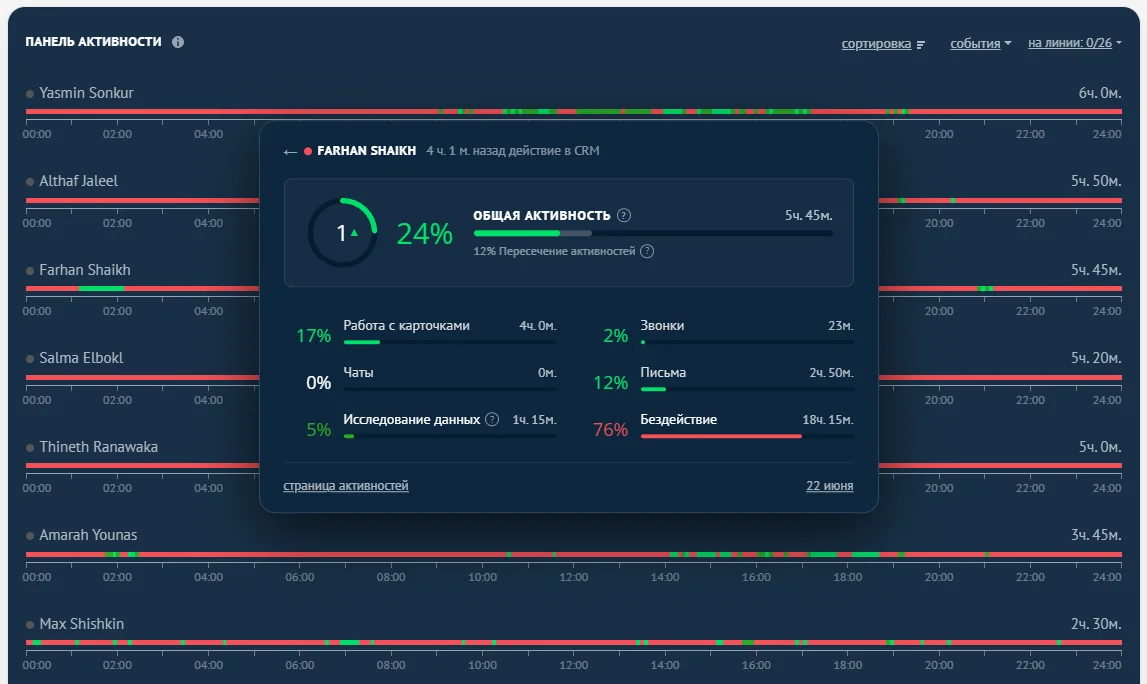
The panel measures not just the count of actions, but the time each employee spent on each activity type — effectively a time-log of the working day inside the CRM, in real time.
| Activity type | What it is |
|---|---|
| Calls | Inbound and outbound calls via the telephony integrated with the CRM |
| Chats | Conversations in WhatsApp, Telegram, Instagram and other channels connected to the CRM |
| Emails | Emails to clients sent from the CRM |
| Card work | Filling in and editing deal and contact cards, moving deals across pipeline stages |
| Zoom calls | Zoom video meetings held from the CRM |
| Data research | Time in the CRM without «physical» actions (calls, chats, tasks), but spent reading correspondence and studying cards and field data — detected by mouse movement and an open window |
Activity overlap. Some actions happen at once (a call while working on a card), so the percentages can add up to more than 100%. Total activity (the sum of time on any action) and the idle percentage are counted separately.
What the screen shows
All reps on one screen, in rows. For each, you see action counters, and the table can be sorted by activity so top performers and weak links surface immediately.
- ✓Periods — for today, the week, the month.
- ✓Per-employee detail — open a card to see what the activity is made of.
- ✓Sorting and comparison — who's overloaded, who's underperforming, who's picking up.
- ✓On desktop and mobile — the screen opens both on a computer and on a phone.
Remote control
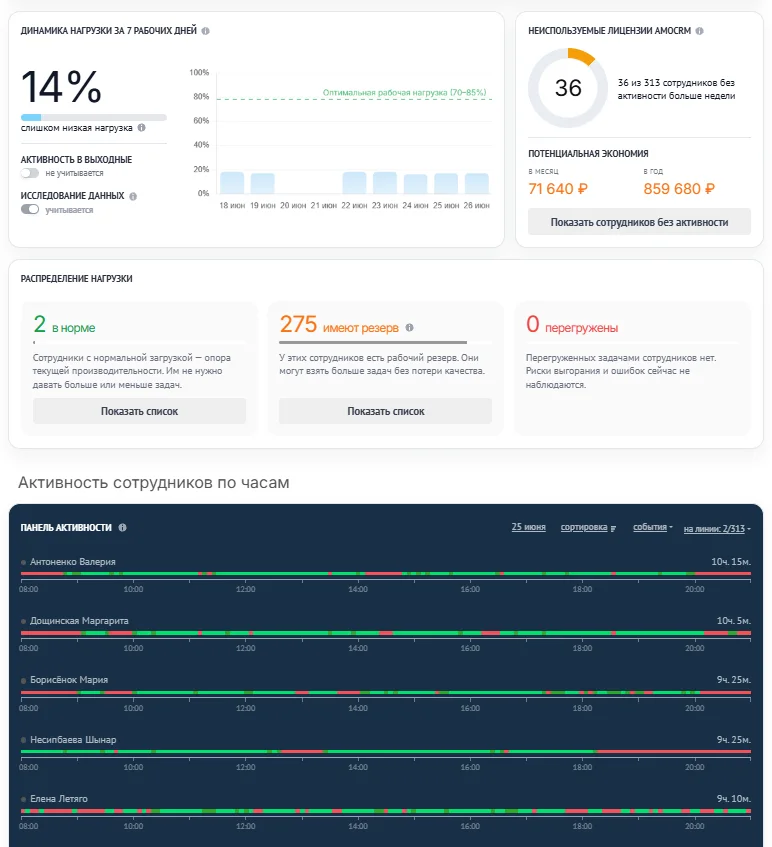
The main reason teams install the panel is the remote sales team. Until a manager sees a rep, they don't know whether the rep is calling, and everyone has learned to «look busy». The panel removes the question: the work is visible by the facts in the CRM, no matter where the person is.
How to keep a remote sales team under control overall — in our piece on the remote sales department on Kommo.
Technical FAQ
From your Kommo account: actions in the CRM (calls, chats, emails, tasks, deal moves) and the time spent working with data inside the CRM. No trackers on computers and no screen recording — only what already happens in the CRM.
No. An event either happened in the CRM or it didn't. So the panel's numbers are objective, unlike verbal reports at a meeting.
The panel updates roughly every 5 minutes. First data after install is collected within 1–2 hours on small accounts (up to 5 users) and within 5–6 hours on large ones.
Yes. The widget settings contain a link to the panel — open it on a phone or on a computer connected to an office monitor.
Per account — there's no limit on the number of employees.
Data is taken via the official CRM API, encrypted in transit and at rest, and there's no export function — which lowers the risk of leaks.
Standard reports don't quickly answer «who is actually working today». The panel gathers each rep's actions on one screen, in real time, and lets you compare reps.
Install & setup
- 1Click the install button or find «Activity Panel» in the Kommo marketplace.
- 2Authorize the widget — grant access to your account.
- 3Open the widget in «Settings» and click «Activate».
- 4Let the panel gather data — a stable picture shows after one to two weeks of observation.
Pricing and full overview — on the Activity Panel page.
Other integrations
All integrations >RegionTime: client local time
The client’s local time, region and time zone from the phone number — with DST, weekends and holidays.
SLA: First Touch Control
Track response time to new deals. Preventive alerts, end-of-day report and tasks.
Peresmenka
Shift management for reps and automatic deal distribution. Even workload, real-time stats.
Workspace Diagnostics
Automatic CRM health check: pipelines, deals, tasks, activity — with AI recommendations.
Advanced Fields
Field grouping, converting toggles into convenient controls, adding measurement units.
Questions about Activity Panel?
Leave a request — we'll help with install, setup and show you how to read the team's activity screen.
on messengers