 Technical breakdown · Kommo CRM
How AntiTwiks works
AntiTwiks is anti duplicates for Kommo — leads, contacts and companies. The rules that make two cards a duplicate, what happens in real time and during a bulk run, what moves to the main card, and why the duplicate is neutralised instead of deleted. For people who already get the idea and want the details.
Purpose
AntiTwiks finds and merges duplicate leads, contacts and companies in Kommo. It works in two modes: it checks every new card as it is created, and it clears the whole accumulated database in a single bulk run.
Matching runs on phone and email rather than on the card title, so the same customer entered three times under three spellings of their name is still found. The duplicate's data moves to the main card, after which the duplicate is neutralised — without deletion, because the platform no longer lets integrations delete cards (see “What happens to the duplicate”).
How duplicates are detected
Contacts and companies have their own settings tabs; leads are handled by the Rules tab. The underlying logic is the same.
Match fields
- Phone — the last 10 digits are compared. Formatting is irrelevant:
+1 (930) 300-1110and9303001110are the same number. - Email — exact match, case-insensitive.
Logic
- OR — any of the selected fields matches. Catches more duplicates.
- AND — every selected field must match. Stricter, almost no false positives.
Extra safeguards
- Name-similarity threshold — cards with dissimilar names are not merged even when the phone matches.
- Exclusions — lists of phones and emails that never count as a duplicate signal (the shared office number,
info@, the call-centre line). - Exclusion checkbox — a dedicated field on the card: anything ticked is skipped entirely.
- Company contact limit — a company with many contacts is not merged by accident.
Real-time mode
Kommo notifies the integration when a card is created and the job goes into a queue. Processing is always in the background — the card you are working in never freezes.
- Delay — 1 to 60 seconds. It gives other integrations time to write the phone and email into the card: right after creation they are often still missing.
- Action on a match — merge the duplicate, or tag it. Tagging is the safe way to start: watch what the integration finds for a week, then switch merging on.
- After the merge — optionally add a comparison note and create a task for the card owner.
Bulk merge across the database
Its own tab in the integration. One run clears years of build-up and goes through three phases, shown in the UI as a tree of steps:
- Fetching. Cards are pulled from the CRM page by page, rate-limited.
- Detecting. The index is built on our side and matches are found locally — without a single search request to the CRM. That is why a database of tens of thousands of cards does not turn into thousands of API calls.
- Merging. Pairs are processed one by one; the tree shows how many were merged, how many were skipped and why.
You can stop the run at any point — merges already done stay, and each of them is still reversible. If the plan quota runs out mid-run, the run stops immediately and the remaining pairs are counted as skipped with the reason “quota exceeded”.
Which card survives
For contacts and companies the main card is chosen by the strategy you pick:
- earliest by creation date — usually the customer's “historical” card;
- latest by creation date — the fresh one, with current data;
- earliest or latest by modification date.
Leads have richer logic driven by rules: rules fire top-down by priority, and inside a rule you choose which lead survives — earliest, latest, the one with a task, the one further down the pipeline, or the one with the largest budget. A rule can also be limited to one pipeline, exclude specific stages and define a tie-break sort.
What moves to the main card
The transfer always happens before the duplicate is neutralised.
- Fields. The duplicate's values are appended to the main card. Within one field values are merged without repeats: phones are compared by their last 10 digits and emails case-insensitively, so the same number in two formats is not stored twice.
- Tags. Carried over, except our service markers — bookkeeping tags never reach the surviving card.
- Tasks. The duplicate's open tasks are re-linked to the main card, so no task is left stranded on a neutralised duplicate.
- Links. Related leads, companies and contacts are re-linked to the main card and unlinked from the duplicate.
- Chats. The duplicate's conversations (WhatsApp, Telegram and other channels) are re-linked to the main card together with the full message history. This applies to contacts; companies have no chats, and leads carry conversations through their contacts.
- Merge note. The main card gets a service note comparing what was on the duplicate, what was on the main card and what the result is.
What happens to the duplicate: neutralised, not deleted
Under the security standards for public integrations, deleting contacts, leads and companies is closed at the API level: there is no delete method and the request returns an error. It protects you from a third-party app wiping the database with a single bug. So no legitimate integration can “just delete the duplicate” today.
Instead, AntiTwiks does this:
- Contact or company. Every field on the duplicate is cleared and the card is renamed to “Duplicate (merged)”. It stops surfacing in search, stops attaching itself to new deals and is excluded from further duplicate detection. Nothing is lost — the data is already on the main card.
- Lead. The duplicate is moved to the system status “Closed — lost” with the loss reason “Duplicate” and a closing date. Its contacts and companies have already been re-linked to the main lead by that point.
- Owner. Optionally, a neutralised duplicate can be reassigned to a dedicated user so it stops cluttering the lists of working reps.
- Service tag. Every duplicate gets our own marker — that is how the integration tells its own cards apart from everything else (a user-defined tag cannot do this job: people rename it and other integrations write into it).
- The
To_deletetag. Once the undo window is over and the card can no longer be restored, a nightly job adds this tag. Filter the database by it and delete the spent duplicates in bulk, by hand, inside the CRM.
Un-merge: reversing a merge
A full snapshot of both cards is stored before every merge. While the undo window is open, the merge can be taken apart from the duplicate's card or from the merge history with a single button.
What comes back: the main card's fields return to their previous state; the duplicate's name and all its fields are restored from the snapshot; links and tasks are re-linked back; a lead gets its original status back and the loss reason is cleared.
What cannot come back: re-linked chats — the CRM has no “unlink chat” operation, so after an un-merge the conversation stays visible on the main card as well. No data is lost either way.
- START — 15 days
- PRO — 30 days
- MAX — 90 days
You can undo a single merge or the result of an entire bulk run. Once the window closes the snapshot is purged and the card is tagged To_delete as ready for manual removal.
Settings
Integration tabs: Contacts, Companies, Rules (for leads), Mass Merge, History, Settings.
On the contacts and companies tabs
- duplicate detection on or off;
- action: merge the duplicate or tag it, and the tag name;
- match fields (phone, email) and AND/OR logic;
- merge delay in seconds;
- main-card strategy;
- exclusions: phones, emails, maximum contacts per company;
- post-merge actions: comparison note, task for the owner, owner for the neutralised duplicate.
Company settings can mirror the contact ones, so you only configure it once.
Rules for leads
A prioritised list of rules: which lead survives, a pipeline restriction, merge scope (within one pipeline or across all), excluded stages, field-value concatenation, a merge note and a deferred merge with a delay.
Merge history
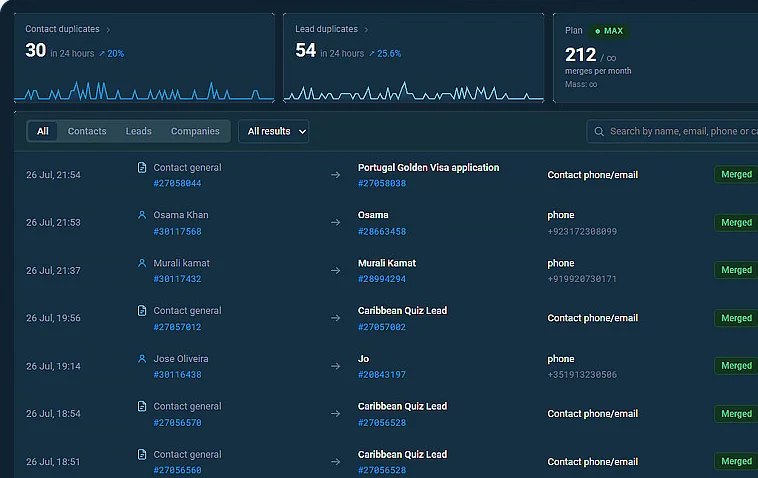
A table of every operation: date, main card, the match that flagged the duplicate, the duplicate itself and the status. Filters: all, merged, skipped, tagged, errors. Skipped rows show the reason — an exhausted quota or a name similarity below the threshold, for instance.
Each row opens a comparison window: what was on the main card, what was on the duplicate and what the result is, with an un-merge button and the date the undo window closes.
Limitations worth knowing upfront
- Cards cannot be deleted — the API offers no such method to integrations. The final deletion is always done by a human in the CRM, filtered by the
To_deletetag. - The duplicate's notes and timeline do not move — the events API is read-only. That history stays on the neutralised duplicate.
- Chat re-linking is one-way — the CRM has no “unlink chat” operation.
- Quotas are counted separately — real time and bulk runs have their own counters, and spending one does not consume the other.
Plans
Priced per account, not per user. There is no trial — instead there is a permanently free START plan. The plan is chosen and paid for inside the integration.
Installation
- 1Click the install button or find “AntiTwiks” in the Kommo marketplace.
- 2Authorise the integration — grant access to your account.
- 3Open the integration settings and click Save — the Contacts, Companies, Rules, Mass Merge and History tabs appear after that.
Other integrations
All integrations >RegionTime: client local time
The client’s local time, region and time zone from the phone number — with DST, weekends and holidays.
Advanced Fields
Group fields, turn toggles into convenient controls, add measurement units.
Peresmenka
Manager shift management and automatic deal distribution. Even workload, real-time stats.
Mass Lead Creator
Bulk-creates deals for calling from selected contacts. Tasks scheduled within working hours.
Workspace Diagnostics
Automatic CRM health audit: pipelines, deals, tasks, activity — with AI recommendations.
Questions about the integration?
Leave a request — we'll help with installation, setup, and picking the right widgets for your Kommo CRM process.
on messengers