Meta Lead Ads for Kommo
From ad submission to sale
The widget transfers form submissions from Facebook and Instagram to the CRM and sends sales information back to Meta.
This allows Meta to see not only who submitted a form, but also who became a customer. This data helps assess ad results more accurately and can be used to optimize ads to attract customers who are more likely to make a purchase.
7-day trial with Pro features includedHow it works
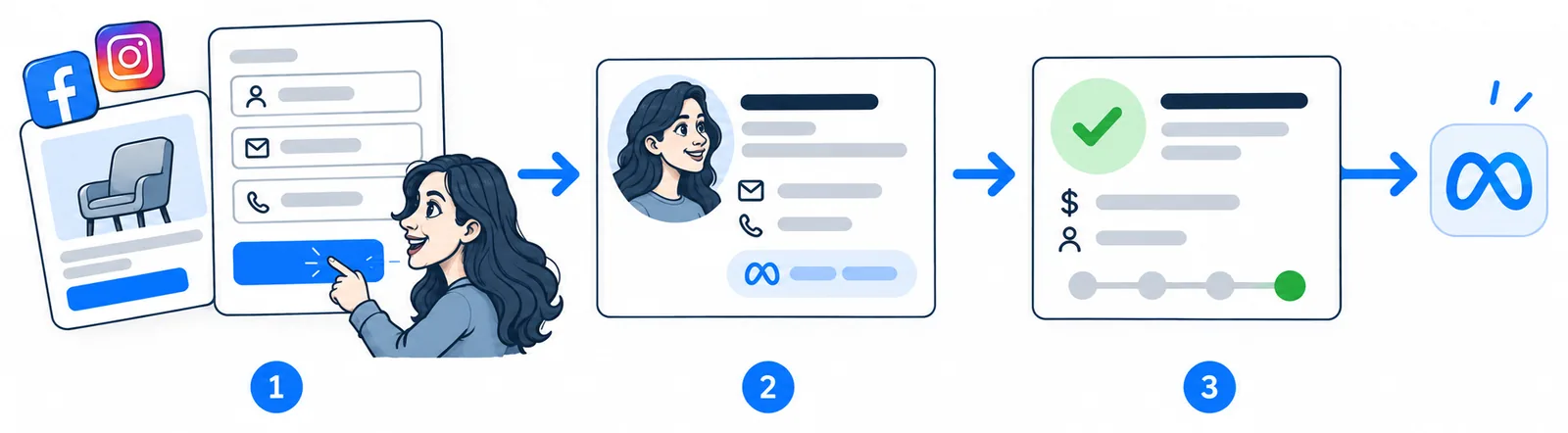
The customer fills out a form
Someone sees your ad on Facebook or Instagram and submits a form with details such as their name and phone number.
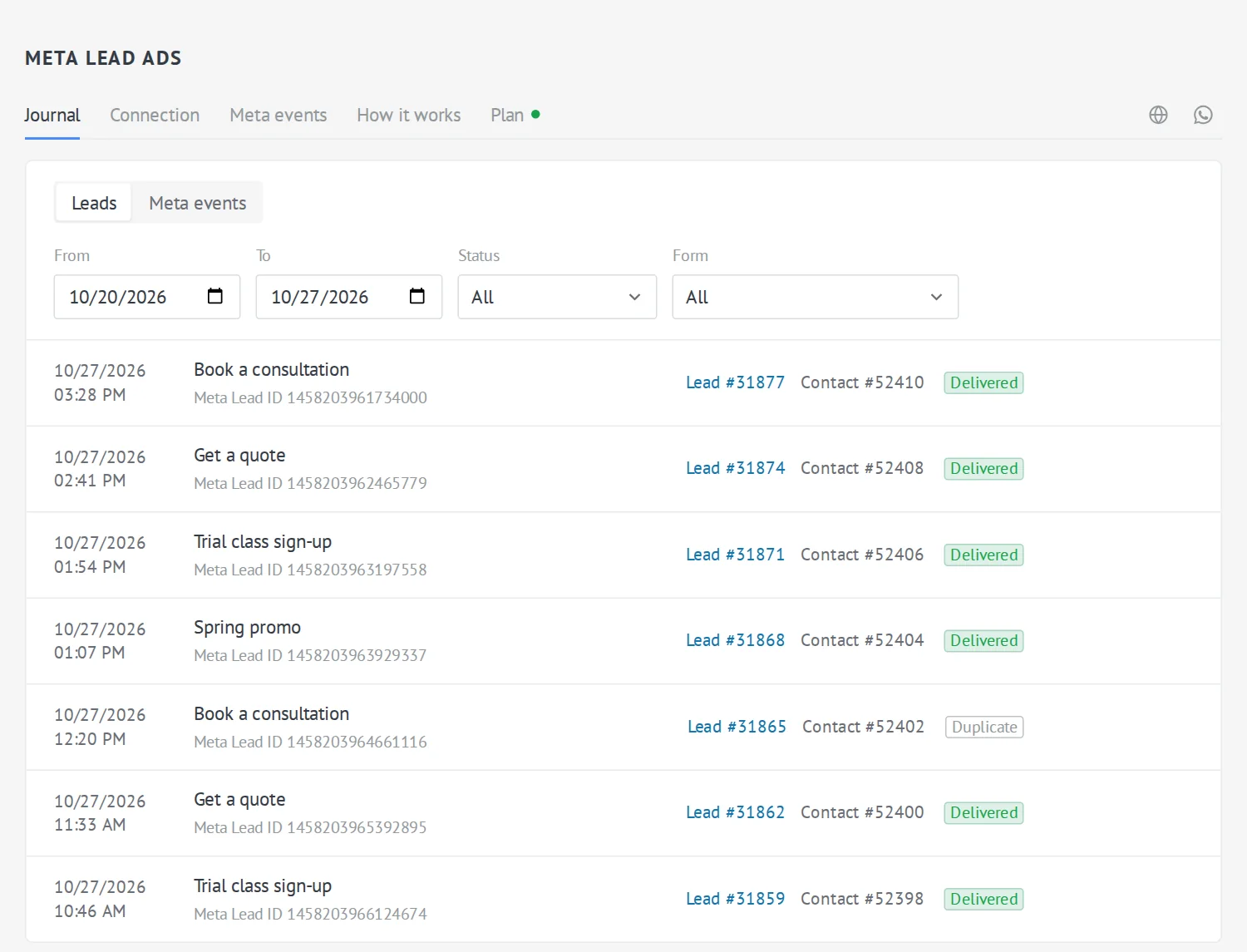
The form submission appears in your CRM
The widget creates a lead and a contact, saving the customer's answers and available ad data: the campaign, ad set, and ad itself.
You can see where the customer came from in the lead card.
You work with the lead
Contact the customer and move the lead through the pipeline as you work with it.
Meta receives information about the outcome
When the lead reaches a selected stage, such as “Closed - won”, the widget sends an event to Meta.
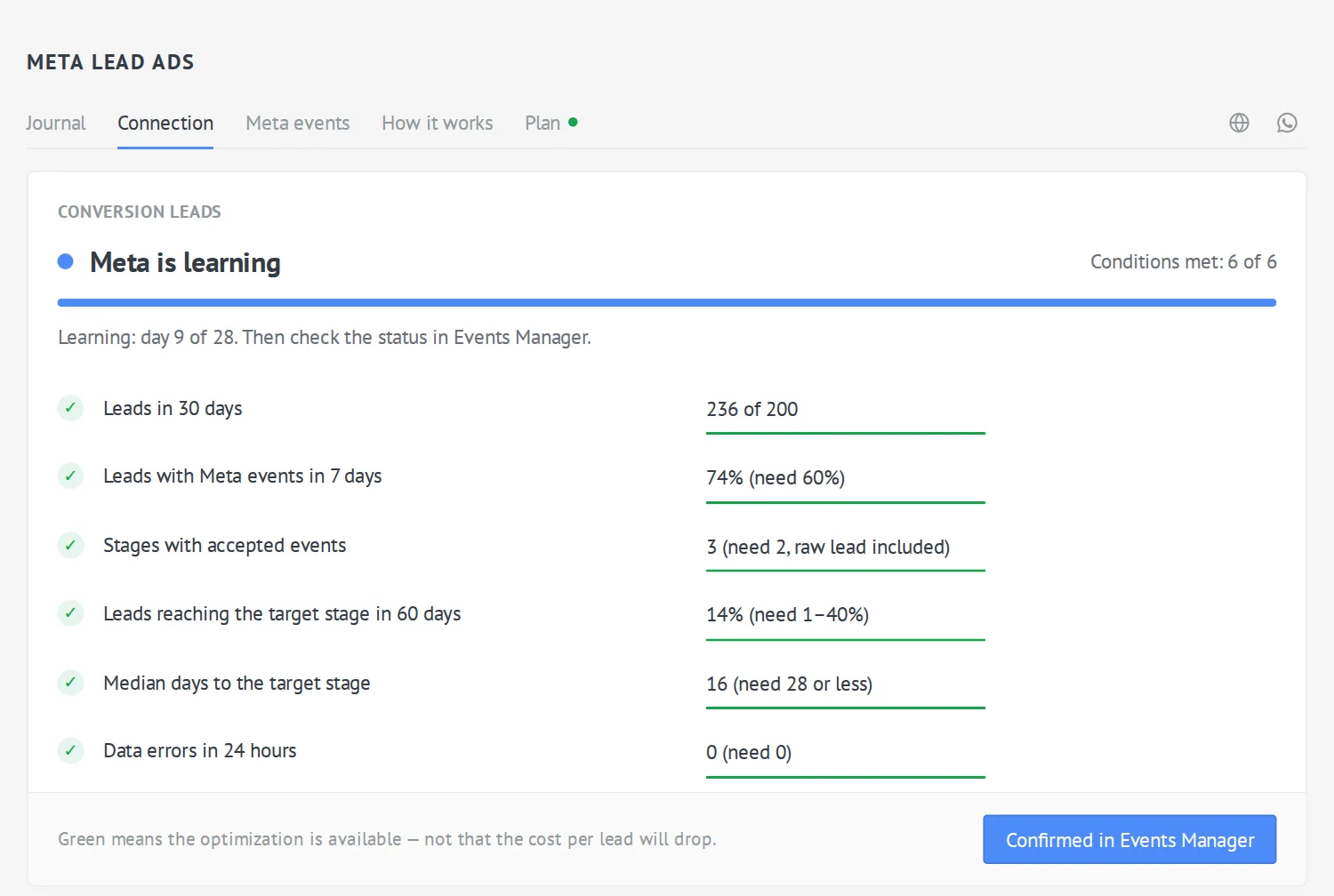
This lets Meta learn which form submissions turned into sales and use this data to optimize ads when its conditions are met.
How to set up the widget
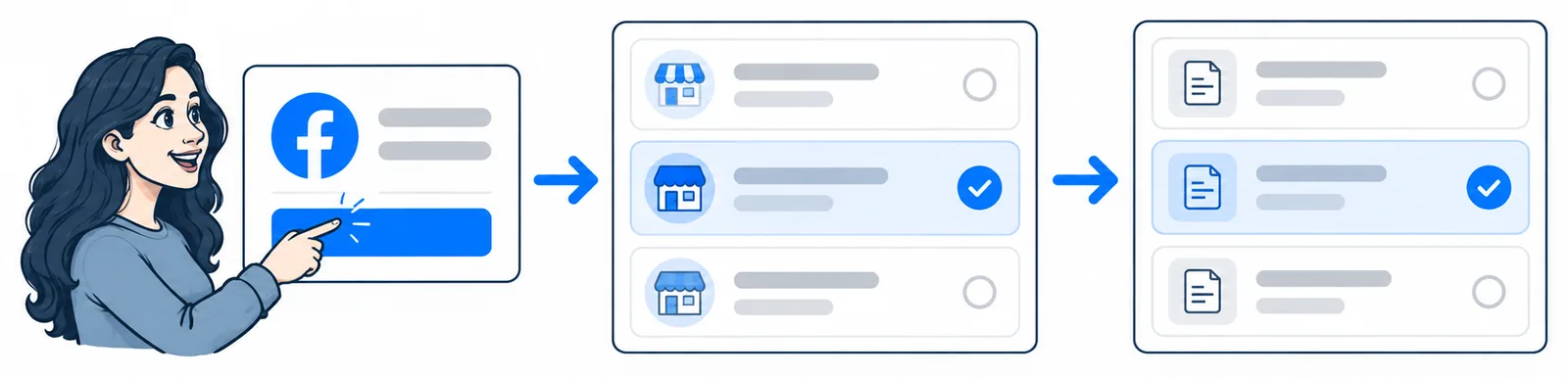
Connect Facebook
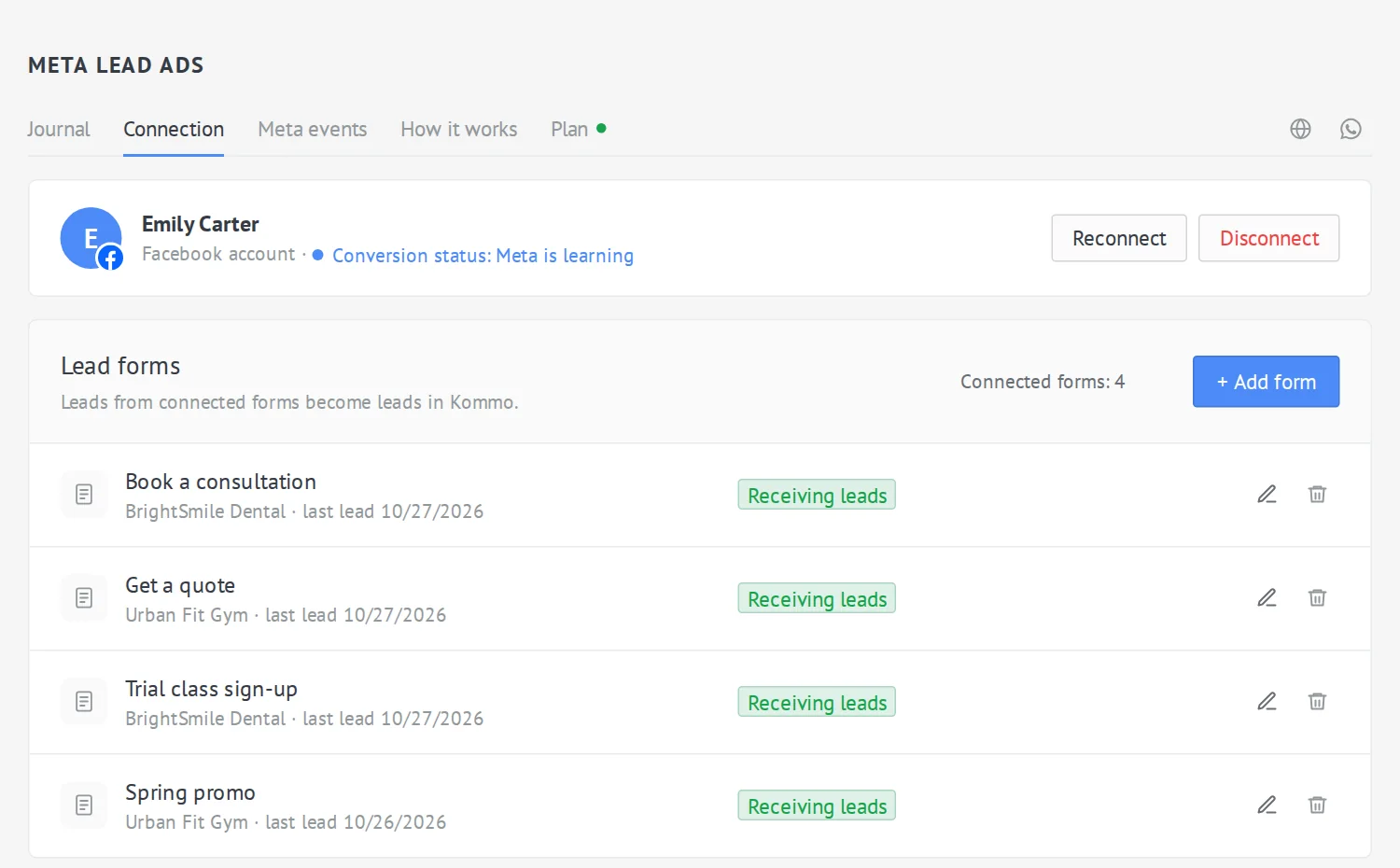
Click “Connect Facebook”, sign in to your account, and grant access to the pages and forms you want to work with.
Add a form
Click “Add form” and select the form whose submissions should go to your CRM.
Set up how submissions are received
Specify which CRM fields should store the customer's answers and which pipeline and stage leads should be created in.
If needed, select a responsible user, add tags, and set up task creation.
Check the result
Send a test submission through the form. Then open the lead that was created and check the customer's answers and ad data.
Set up sending outcomes to Meta
If you want to send sales information to Meta, open the “Meta events” section:
- Connect a Meta dataset — the destination for events from your CRM.
- Select the pipeline stages you want to report to Meta.
- Specify the target stage, such as “Closed - won”.
- Move a test lead to the selected stage and check the event in Meta Events Manager.
Sending events back to Meta is available on the Pro plan.
7-day trial with Pro features included
Frequently asked questions
Why is ad data missing from the lead?
Will Meta start optimizing ads for sales immediately?
How much does it cost?
Connect lead forms to Kommo
Connect Facebook, choose a page and select a lead form to send submissions to Kommo.
7-day trial with Pro features included